


TV Cast Pro for Fire TV
4.1436.00 Reviews
App Specs
- Version
- 2.47
- Updated On
- License
- $6.99
- Downloads
- 100,000+
- Developer
- 2kit consulting
- Categories
- Video Players & Editors
- Platform
- Android, iOS
Screenshots
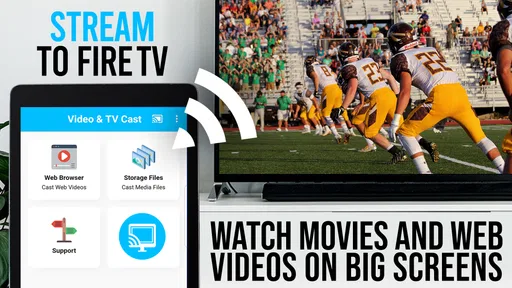
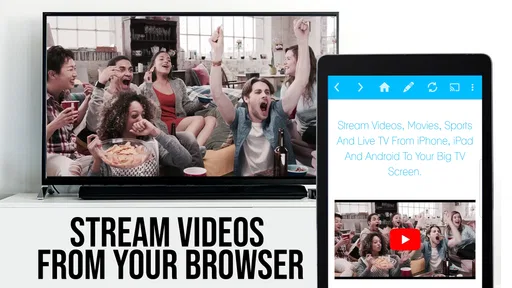
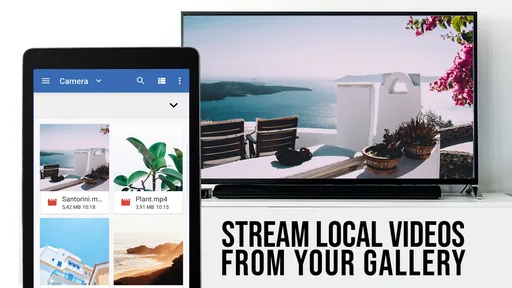
 Analysis by AppCompare
In my first week with TV Cast Pro for Fire TV, the appeal was easy to understand: I could browse for a web video on a mobile device and send it to the television instead of crowding around a small screen. That convenience feels most useful when I already know what I want to watch and the video lives on a website rather than in one of the familiar streaming apps.
I’d treat it as a handy bridge between web browsing and the living room, not as a replacement for every streaming service. Its value depends on the sites I return to and how often I want their videos on a Fire TV. If that describes your routine, the app can earn a place in it; if nearly everything you watch is already in a dedicated TV app, its job may be occasional.
Where it fits in a real evening
One everyday use is finding a longer video on your phone during a break, then continuing on the television when you get home. I can also see it helping when friends share a web video that does not have an obvious route to the Fire TV: open the site in the app’s browser, locate the clip, and try casting it. That is a more focused task than mirroring an entire phone screen, which can expose notifications and keep the phone tied up.
The same workflow suits a household where people take turns choosing clips. Bookmarks can make frequently visited sites easier to revisit, so nobody has to type a long web address with a remote. I would still keep a note of which sites work reliably: web players differ, and a browser-based video is not guaranteed to behave like a video inside a dedicated TV app.
What the price means over time
This is a paid video-player and editing-category app from 2kit consulting, priced at $6.99. I’d judge that cost against repeated use, not the novelty of getting one clip onto the television. If I use it every week for sources that other TV apps do not cover, the one-time purchase can feel practical. If I only cast a video once in a while, the built-in options I already have may be enough.
The app has a 4.3 average from around 1,900 ratings, and it has passed 100,000 installs. Those figures suggest that it has found an audience, but they do not tell me whether a particular website will work well on my setup. I’d make the decision based on my own sources and viewing habits rather than treating popularity as a promise of universal compatibility.
Where it sits beside other ways to watch
Compared with opening a native streaming app on Fire TV, browsing on a phone can be quicker when I am already searching the web, but it introduces an extra handoff. A native app is usually the cleaner choice for services I watch often, especially when I want their own menus and account experience. Screen mirroring is broader in what it can show, yet it duplicates the phone display and can be less convenient for a long video. This app occupies the middle ground: web browsing on the mobile device, with playback sent to the television.
Worth Reading Before You Choose

EA SPORTS FC Mobile 26 Is a Bigger Football Game, but It Takes Time

Flipboard Shows What News Apps Must Do Beyond the Feed

Switching to Android Auto Means Rethinking Your Driving Routine

Google Calendar Makes a Crowded Week Easier to Manage

Ludo King Makes the Most of the Minutes Between Plans

Baby Panda World Brings Quick Play to Modern Phones, but Its Game Library Feels Busy
A useful habit is to test a site with a short clip before settling in for a full-length stream. That helps me discover early whether its player exposes a castable video and whether the connection holds up. For a live event, I would start well before the important moment, since a site’s player and the home network both affect the experience. The app can be a helpful route to a stream, but it cannot make an unreliable source or crowded Wi-Fi behave perfectly.
Maintenance without turning it into a project
The basic setup is straightforward: the phone and Fire TV need to be on the same Wi-Fi network, then I browse to the video and use the cast control. That is simple enough for occasional use, though it does mean the phone is part of the process. If casting fails, I would first check that both devices remain on the same network and that the video itself plays in the browser. Clearing the browser cache is another reasonable troubleshooting step for a site that has stopped behaving normally.
Keeping the app current is sensible, but I would not make maintenance a weekly chore. The practical routine is to update when an update is available, revisit saved sites now and then, and troubleshoot only when a familiar source stops working. The current version is 2.44, and it supports operating systems from version 7.0. It is rated for Everyone, which may suit a shared household, although the age label does not make every website opened in a browser suitable for every viewer.
Getting Started with TV Cast Pro
First things first, setting up the TV Cast Pro for Fire TV is a breeze. I downloaded the app from the app store and within minutes, I had it up and running. The interface is pretty straightforward, so even if tech isn’t your thing, you’ll have no trouble navigating through it.
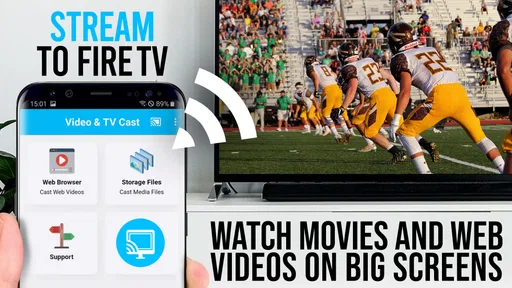
Once you have the app, you’ll need to make sure your phone and Fire TV are on the same Wi-Fi network. This is crucial, folks! After that, you just open a browser within the app, find the video you want to watch, and hit the cast button. Voilà! It’s on your TV, just like that.
Features That Stand Out
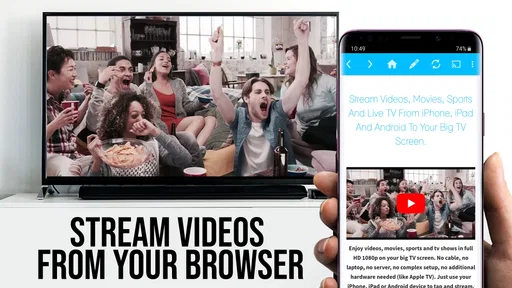
One of the standout features of this app is its ability to stream almost anything. I’m talking about YouTube, Vimeo, and even some obscure video sites I stumbled upon. The app doesn’t discriminate – if it’s on the web, it can probably cast it.
Another cool feature is the bookmarking option. I love this because it lets me save my favorite streaming sites, making it super easy to access them later. No more typing out long URLs on a tiny phone keyboard!
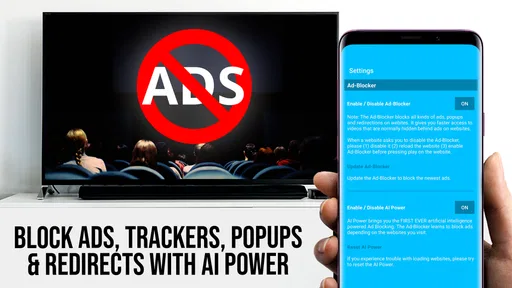
Let’s not forget the ad-blocker. Yes, you heard that right. The app has an integrated ad-blocker for a seamless viewing experience. So, you can say goodbye to those pesky pop-ups that always seem to show up at the worst times.
For a tidier routine, I’d bookmark the site’s main page rather than a single video URL if its clips change regularly. That way, a saved shortcut remains useful after one video disappears or a live page rotates to a new event. I’d also keep a small set of dependable sources instead of treating every search result as a new destination. This makes the app feel less like a temporary workaround and more like a tool I can reach for without repeating the same setup.
There is a trade-off to the ad-blocking convenience: a website can depend on scripts or embedded players that behave differently when page elements are blocked. If a video refuses to load, I would try the site again without assuming the cast connection is broken; the page itself may be the issue. Likewise, a video that plays inside a web page may not present a video stream the app can send independently. That distinction matters: casting a video is not the same as promising that every page, animation, or protected player can be transferred.
Performance and Reliability
Now, you might be wondering about the performance. I was pleasantly surprised by the smooth streaming experience. There were no hiccups or buffering nightmares, and everything played in crisp quality. It was like the videos were meant to be watched on a big screen all along.
I also tried casting some live streams, and the app handled it like a champ. The connection remained stable throughout, which is a huge plus if you’re into live sports or events.
My more cautious advice is to separate the app’s role from the source’s role. A stable cast cannot improve a stream that is already delayed, low quality, or repeatedly interrupted at its website. If a clip starts smoothly but then stalls, I would check whether other devices are using the network before repeatedly restarting the app. For an important live broadcast, having a familiar native TV option as a backup is sensible; I would not make a newly discovered web player my only plan for a match or event I care about.
It is also worth deciding where you want to control playback. The mobile browser is useful for discovering a video and choosing a page, while the Fire TV is where you settle in to watch. That split works well when I am browsing casually, but it can feel less direct than selecting a show from the television’s own interface. If I expect to search, pause, and switch clips constantly, a native app or the Fire TV remote may be the more comfortable centre of attention.
A Few Tips and Tricks
While using the TV Cast Pro for Fire TV, I discovered a few tricks that might come in handy. For instance, if you’re having trouble with a particular site, try clearing your browser cache. Sometimes that does the trick. Also, if your video keeps buffering, check your Wi-Fi connection. Sometimes, a simple restart of your router can make all the difference.
Another tip is to keep your app updated. The developers are pretty good about rolling out updates that improve performance and fix bugs. So, make sure you’re running the latest version for the best experience.
Who will keep reaching for it?
I think it makes the most sense for someone who regularly finds videos in a mobile browser and wants to watch them on a Fire TV without mirroring the whole phone. It can also suit people who visit a handful of niche video sites and prefer quick bookmarks to repeated address entry. The strongest case is a recurring habit: you know your sources, use them often, and want a straightforward way to send suitable web videos to the larger screen.
I would skip it if my viewing is almost entirely inside the usual subscription and broadcaster apps, or if I need a guaranteed way to play every website’s content. Someone who wants to browse only with the television remote may also prefer a TV-native browser or an official app, where available. The extra step of finding a page on a phone is a real part of the experience, not a flaw that disappears after installation.
The Final Verdict
All in all, I have to say that the TV Cast Pro for Fire TV has transformed my streaming game. It’s convenient, easy to use, and it just works. Whether you’re a binge-watcher, a sports fan, or someone who loves browsing random videos online, this app is a game-changer.
If you’ve been looking for a way to effortlessly cast your favorite content to your TV, give this app a shot. Trust me, you won’t regret it. Happy streaming!
For lasting value, I would not call it essential for every Fire TV owner, but I can see it earning a permanent spot for the right routine. The novelty wears off; the useful part is having familiar web sources ready when the television’s own apps do not cover what I want. My recommendation is to think of one or two sites I genuinely revisit, then weigh the paid price against how often I would use them. If that habit is already there, this is a focused convenience. If not, the simpler choice is to stick with native TV apps and cast only when a specific need comes up.
Pros
- Seamless streaming from mobile to Fire TV.
- Supports a wide range of video formats.
- Ad-free experience enhances usability.
- User-friendly interface for easy navigation.
- Regular updates improve performance.
Cons
- Requires stable Wi-Fi for optimal use.
- Limited to Fire TV; not cross-platform.
- Some features hidden behind paywall.
- Initial setup can be slightly complex.
- Occasional lag with high-res videos.
FAQs for TV Cast Pro for Fire TV
What features does TV Cast Pro for Fire TV offer?
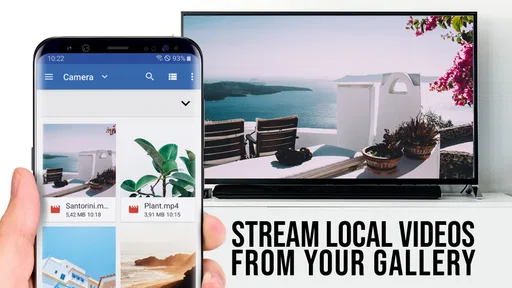
TV Cast Pro for Fire TV allows users to stream videos, movies, and live streams directly from their smartphone or tablet to a Fire TV device. It supports a wide range of video formats and provides an ad-free experience for uninterrupted viewing. Additionally, it offers advanced features like bookmark management and the ability to cast personal media.
Is TV Cast Pro compatible with all video formats?
TV Cast Pro supports a variety of popular video formats including MP4, M3U8, and HLS live streams. While it handles most standard formats, there may be some proprietary or less common formats that require conversion or additional software to stream effectively. It's always a good idea to test your specific media files for compatibility.
How does TV Cast Pro ensure data privacy and security?
TV Cast Pro prioritizes user privacy by not storing or transmitting your media files through external servers. All content is directly streamed from your device to the Fire TV, ensuring that your personal data remains secure. It also adheres to standard privacy policies, giving users control over their data.
Can I use TV Cast Pro without an internet connection?
To fully utilize TV Cast Pro, a stable internet connection is necessary for streaming online content. However, if you plan to cast downloaded media stored on your device, you may not require a constant internet connection. Ensure both your device and Fire TV are connected to the same local network for seamless casting.
What should I do if TV Cast Pro fails to connect to my Fire TV?
If you're experiencing connection issues, first ensure both your mobile device and Fire TV are on the same Wi-Fi network. Restart both devices and try again. Check for any available updates for the app and your Fire TV. If problems persist, consult the app’s support for further assistance.


